
Why Your Online Radio Station Needs an Intro File
If you run an internet radio station, first impressions matter. An Intro File is a short audio clip — a jingle, station ID, or welcome message — that automatically plays every time a listener connects to your stream.
For online radio broadcasters, this simple feature is a powerful branding tool:
- Instantly identify your station to new listeners
- Reinforce your station name and slogan
- Sound more professional and polished
- Build listener recognition and loyalty over time
Whether you're running a small internet radio station or a full 24/7 broadcast, adding an intro is one of the easiest ways to level up your stream.
Step-by-Step: Adding an Intro File
1. Go to the "Intro Files" Section
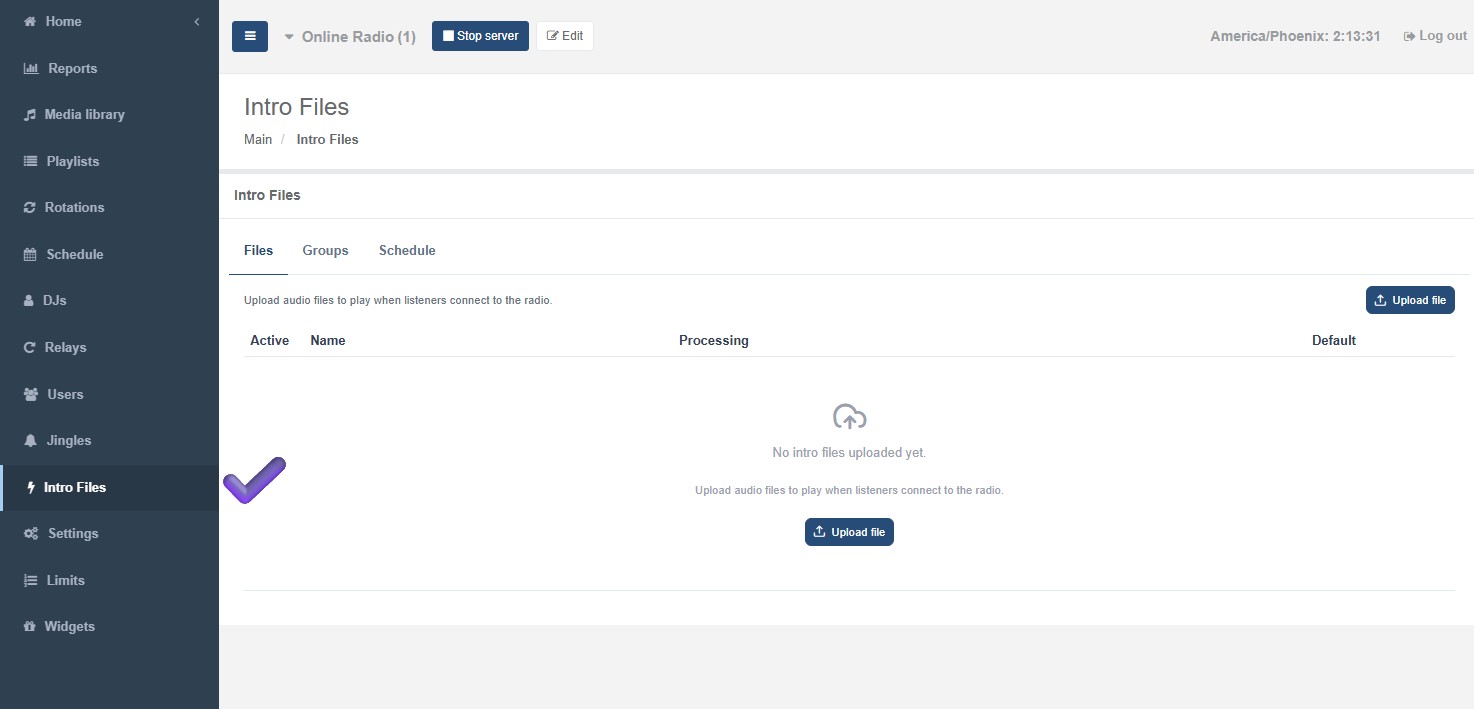
In your Streaming Center panel, navigate to Main → Intro Files. You'll see three tabs:
- Files – your uploaded intro audio files
- Groups – collections of intro files
- Schedule – time-based playback rules
2. Click "Upload File"
On the Files tab, you'll see:
"Upload audio files to play when listeners connect to the radio."
Click the blue Upload file button (available both in the top-right corner and center of the screen if your list is empty).
3. Choose Your Audio File
⚠️ Important: the file must be in MP3 format. Other formats (WAV, FLAC, OGG, etc.) may not be processed correctly by the system.
Best practices for your intro file:
- Format: .mp3 only
- Length: 5–15 seconds is ideal — short enough to keep listeners engaged
4. Wait for Processing
After uploading, your file will appear under the Processing column while the system converts and prepares it for streaming. Give it a moment before it's ready to use.
Groups – Grouping Intro Files for Variety
The Groups tab lets you bundle multiple intro files together. Here's how it works:
The system randomly picks one file from the group each time a listener connects.
This means your audience won't hear the exact same intro every single time — instead, they'll get a random variation from the group, keeping your station sounding fresh.
Groups also serve a second purpose: they can be scheduled to play during specific time windows (see Schedule below), so you can assign a whole set of intros — not just a single file — to a particular part of the day.
Schedule – Time-Based Intro Playback
The Schedule tab lets you control which intro (or intro group) plays during specific hours of the day — perfect for stations that want a different vibe depending on the time slot.
Example:
- Create a group with several morning intros ("Good morning," a wake-up jingle, etc.).
- In Schedule, set that group to play from 6:00 AM to 10:00 AM.
- Assign a different file or group for the rest of the day (afternoon, evening, overnight).
This lets your online radio station automatically adapt its sound throughout the day — no manual switching required.
Common Issues & Fixes
| Issue | Solution |
|---|---|
| File won't upload | Make sure it's a valid .mp3 file, not another format |
| Intro isn't playing on stream | Confirm the file is marked Active and/or Default |
| File stuck on "Processing" | Wait a few minutes and refresh, or try re-uploading |
| Same intro every time | Use Groups to add multiple files for random rotation |
Adding an intro file to your online radio station takes just a few minutes: head to Intro Files → Files, click Upload file, upload an MP3, and mark it as active. For more advanced setups, use Groups to rotate multiple intros randomly and Schedule to play different intros at different times of day — like a dedicated morning jingle vs. a late-night station ID.